Looking for more help on How to Edit PDF?
- Consult the How to Edit interactive guide.
- Ask a question in our forum.
- You can leave a comment below for the author of this tutorial.
This tutorial shows you how to work with the Edit PDFs features in Acrobat 9. See what the all-new Acrobat DC can do for you.
Download a free trial of the new Acrobat.
By Adobe – August 27, 2009

In this tutorial, learn how to rearrange pages in your PDF documents, including rotating, moving, copying, deleting, replacing and renumbering pages using Acrobat 9. To perform this functionality using Acrobat X, check out the video Manipulating Pages in Acrobat.
Most of the following actions can be done from the Pages pane.
You can rotate all or just some pages in your PDF document. Rotation is based on 90° increments.
Note: To temporarily change your view of the page, choose View > Rotate View > Clockwise or Counterclockwise. The next time you open the PDF, your original page orientation is restored.
You can use page thumbnails to copy or move pages within a document, and copy pages between documents. When you drag a page thumbnail in a Pages panel, a bar appears near other thumbnails. This tells you the position in which the thumbnail will appear in the PDF. This bar appears at the bottom or top when the thumbnails are in a single column, or to the left or right if more than one column of thumbnails is displayed.
Note: Tagged bookmarks affect the order that reading devices follow, such as devices for the visually impaired. Tagged bookmarks do not change the sequence of pages in a PDF.
You can replace an entire PDF page with another PDF page. Only the text and images on the original page are replaced. Any interactive elements associated with the original page, such as links and bookmarks, are not affected. Likewise, bookmarks and links that may have been previously associated with the replacement page do not carry over. Comments, however, are carried over and are combined with any existing comments in the document.
After you delete or replace pages, it’s a good idea to use the Reduce File Size command to rename and save the restructured document to the smallest possible file size.
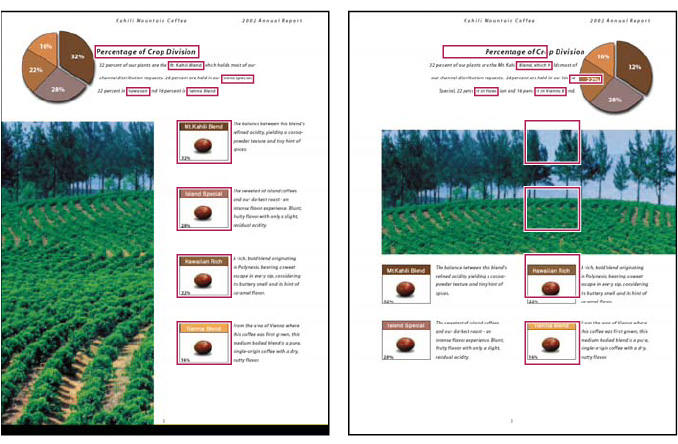
A page before and after it is replaced. The page’s bookmarks and links remain in the same locations.
Note: You cannot undo the Delete command.
You cannot delete all pages; at least one page must remain in the document. If you select Use Logical Page Numbers in the Page Display panel of the Preferences dialog box, you can enter a page number in parentheses to delete the logical equivalent of the page number. For example, if the first page in the document is numbered i, you can enter (1) in the Delete Pages dialog box, and the page is deleted.
The pages you selected in the first document replace the same number of pages in the second document, starting at the page number you selected to drop the new pages on.
The page numbers on the document pages don't always match the page numbers that appear below the page thumbnails and in the Page Navigation toolbar. Pages are numbered with integers, starting with page 1 for the first page of the document. Because some PDFs may contain front matter, such as a copyright page and table of contents, their body pages may not follow the numbering shown in the Page Navigation toolbar.
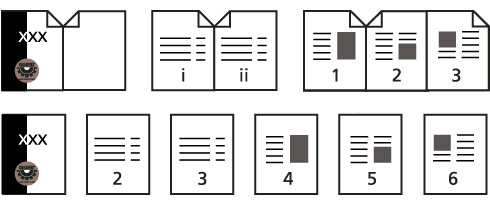
Printed page numbering (top) compared to logical page numbering (bottom)
You can number the pages in your document in a variety of ways. You can specify a different numbering style for groups of pages, such as 1, 2, 3, or i, ii, iii, or a, b, c. You can also customize the numbering system by adding a prefix. For example, the numbering for chapter 1 could be 1-1, 1-2, 1-3, and so on, and for chapter 2, it could be 2-1, 2-2, 2-3, and so on.
Note: Using the Number Pages command affects only the page thumbnails on the Pages panel. You can physically add new page numbers to a PDF using the headers and footers feature.
Products covered: |
Acrobat 9 |
Related topics: |
Edit PDFs |
Top Searches: |
Edit PDF files convert PDF to Word convert PDF to Excel convert PDF to PowerPoint Rearrange PDF pages Convert PDF to JPEG |
Try Acrobat DC
Get started >
Learn how to
edit PDF.

Post, discuss and be part of the Acrobat community.
Join now >
23 comments
Comments for this tutorial are now closed.
Lori Kassuba
6, 2016-01-07 07, 2016Hi charles swallow,
This depends on what pages you’re reordering. If is odd/even, then this thread has an excellent suggestion: https://answers.acrobatusers.com/delete-multiple-pages-time-q112681.aspx
Also, you can find various Actions, that will reverse the page order like this: https://acrobatusers.com/actions-exchange/reverse-page-order1
Thanks,
Lori
charles swallow
10, 2016-01-06 06, 2016what is the fastest way to reorder hundreds of pages into a particular order
Lori Kassuba
3, 2015-03-26 26, 2015Hi MALOJI SHINDE,
You can probably do this using JavaScript but you would need to pattern the rearrangement of the pages. Feel free to ask this question here with specifics on the pages you’re moving:
https://answers.acrobatusers.com/AskQuestion.aspx
Be sure to select the JavaScript category when you ask the question.
Thanks,
Lori
MALOJI SHINDE
9, 2015-03-22 22, 2015I have one pdf file which contain almost 1900 to 2000 pages. I want to arrange these pages in my own order/Sequence, is there any possiblity to make them arrange with one command ? because i do waist one hour after printing to re arrange.please help me.
Lori Kassuba
7, 2015-01-30 30, 2015Hi Cory,
One way to do this would be to place comments on the pages and then search for the pages with the comments and extract them. This particular Action can help you with the extraction part:
https://acrobatusers.com/actions-exchange/extract-commented-pages-for-acrobat-xi
However, you’d need to use some additional JavaScript to search for a specific type of stamp.
Thanks,
Lori
Cory
2, 2015-01-29 29, 2015Hey all, I am in the finance department at a firm that sends folks of travel trips, of which they submit their receipt images back to me and we need to sort those receipts.
QUESTION: is there any way to “name” the page and then sort the pages based on the name we gave it. If so we could name each receipt with it’s category, date, and dollar amount, and when it sorts the pages based on that page name, they will be sorted by the receipt info, like “Air - NOV 01 - 245”, “Air - Nov - 652”, etc.
Lori Kassuba
1, 2014-04-08 08, 2014Hi JCvP,
There have been some improvements in Acrobat XI in the Page Thumbnail navigation pane that can help a bit but it doesn’t work like a typical cut/paste operation. First, you can expand the entire navigation pane to bit the entire window. Second, when you grab the pages, Acrobat will scroll automatically back to the top when you move your cursor to the top of the navigation pane.
Thanks,
Lori
JCvP
10, 2014-04-05 05, 2014Suppose you have a 165-page document and you want to move some of the pages at the end to near the front. Dragging the page thumbnails from back to front would be very time-consuming and laborious. In any other program you would use cut and paste, but those options on the Acrobat Edit menu are grayed out. Why? What’s the alternative to dragging the page thumbnails when you need to redo the page order in a large document??
Lori Kassuba
3, 2014-03-10 10, 2014Hi Jynelle,
Bookmarks are not part of the page structure so they don’t “move” with the pages. There are some scripting tools out there to do this as mentioned in this discussion:
http://answers.acrobatusers.com/How-I-move-pages-pdf-document-dragging-bookmarks-Adobe-Acrobat-X-Pro-q61372.aspx
Thanks,
Lori
Jynelle
7, 2014-03-04 04, 2014How do you move a bookmark and page at the same time? Ross previously asked, but the link that was provided didn’t answer the question (at least in a way that is useful for me). I’m trying to reorganize a PDF and it would be helpful to be able to move the bookmark and the corresponding page at the same time instead of moving the bookmark first and then moving the page.
Lori Kassuba
2, 2014-01-17 17, 2014Hi Ross,
Good question. You can use the Replaces pages command to do this. Check out this discussion for more information:
http://answers.acrobatusers.com/How-I-copy-bookmarks-PDF-maintain-links-q73483.aspx
Thanks,
Lori
Ross
3, 2014-01-13 13, 2014How do I move a bookmark and a page at the same time? I have been looking for an Activate Move setting, but cant seem to find that.
Lori Kassuba
8, 2013-12-19 19, 2013Hi Ben,
There really isn’t a good way to do this in Acrobat 9, only version XI because the editing tools have been improved.
Thanks,
Lori
ben
11, 2013-12-18 18, 2013I have combined 2 PDF’s - adding a table which went at the back of the document. I need it to be combined in page 2.
is there any way of copying the table into the section i need it to be in on page 2
When i try and copy it its only picking up contents of the table and not the table itself.
adobe acrobat 9 Pro Extended.
Lori Kassuba
6, 2013-11-25 25, 2013Hi Reshma,
Acrobat does not control what order files are placed in a zipped folder, this is part of the operating system and zip tool.
Thanks,
Lori
Reshma
11, 2013-11-23 23, 2013Pls tell me how to arrange the pdf files in a zipped folder in correct order.
Lori Kassuba
3, 2013-10-21 21, 2013Hi dmariners,
If you have the Pro. version of Acrobat X or XI, you can download this Action to reverse your page ordering instead of doing it manually:
https://acrobatusers.com/actions-exchange/reverse-page-order2
Thanks,
Lori
dmariners
5, 2013-10-20 20, 2013how to arrange pdf 100 pages of 1 to 100, from bottom to top ex. a to z must be z to a…. need your advice thanks a lot….
Lori Kassuba
5, 2013-06-04 04, 2013Hi Naveed,
Please post your question here and be sure to select the JavaScript category:
http://answers.acrobatusers.com/AskQuestion.aspx
Thanks,
Lori
Naveed
9, 2013-06-01 01, 2013Thanks lori.
Can you let me know how to creat javascript for rearrange pages ?
Lori Kassuba
3, 2013-05-31 31, 2013Hi James,
A couple of things, first it’s not possible to do this in Reader. But if you have Acrobat, make sure the file does not have security set to disallow this (you’ll see a lock icon in the navigation pane). Or, make sure the file isn’t PDF/A compliant, you can find out if there is a Standards navigation pane present.
Thanks,
Lori
James
3, 2013-05-28 28, 2013I’m not able to rearrange pages or drag pages from one pdf file to another, how do I enable this. I was able to a week ago and now nothing.
Lori Kassuba
5, 2013-05-21 21, 2013Hi Naveed,
You can either use Page Thumbnail navigation pane to rearrange your pages or create a custom JavaScript.
Thanks,
Lori
Naveed
7, 2013-05-17 17, 2013Lori.. Thanks for your reply,
But i have same problem, The pdf file has received by email from the other company which contain almost 240 pages, I wont to arrange them in my own order be for printing, All pages has with different name and its time wasted exercise to sort one by one page. and then print.
Lori Kassuba
2, 2013-05-16 16, 2013Hi Naveed,
Take a looks at this tutorial on Inserting pages into a PDF with Acrobat [removed]
https://acrobatusers.com/tutorials/inserting-pages-pdf-acrobat-javascript1
Thanks,
Lori
Naveed
1, 2013-05-10 10, 2013I have one pdf file which contain almost 240 pages. I want to arrange these pages in my own order/Sequence, is there any possiblity to make them arrange with one command ? because i do waist one hour after printing to re arrange.please help me.
nai
6, 2012-09-16 16, 2012How to do in 160 degrees with right angle?
Hi - pages can only be rotated in 90 degree increments.
Lori
rraallvv
1, 2012-08-23 23, 2012All the edition tool options (cut, copy, paste, delete…) are grayed out, how can I enable those?
I am using Acrobat Pro 9.
Any help is appreciated.
Hi - it sounds like your file has security set that disallows changes, in which case you won’t be able to perform these functions.
Lori K.
Nigel Trueman
12, 2012-08-17 17, 2012yes BUT how can I move content from one page to another to make room for me to insert content? I have a complicated form which I created in acrobat X so I can’t go back to the original word document and recreate it.
All I need to do is move content from one page to another to make room for the new. this seems very basic even if acrobat is not an editor it’s a must if you handling forms.
You can do basic text or object editing using the (but not for Designer forms) Tools > Content panel but it doesn’t reflow text and graphics. This is best done in your original authoring program. If you’ve done a lot of form field work, remember that you can use the Replace pages command to replace a specific page or multiple pages without recreating all your form fields. Here is a quick tip on how to do that:
https://acrobatusers.com/tutorials/how-to-replace-the-background-pages-in-a-pdf-form
Lori
ariella
6, 2012-06-21 21, 2012Thanks for this!
Comments for this tutorial are now closed.