
Apply passwords and set permissions with Acrobat 9
By Adobe – April 8, 2009
Ever get nervous about sharing sensitive information? Your work is too important to let just anyone view or alter it. Thankfully, with Adobe Acrobat 9, it's easy to password protect PDF files and set permissions to control printing or changes— so you can feel confident your work is protected.
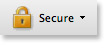
Find the lock icon in the Tasks toolbar.
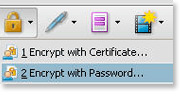
Select Encrypt with Password from the pull-down menu.
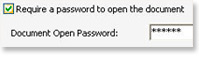
Select Require a password to open the document and enter your preferred password.
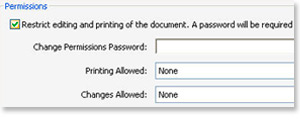
You can also set permissions to restrict printing, editing or document changes.
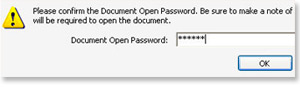
And finally, confirm your password(s) and click OK.