
Dynamically setting a submit by e-mail address using Acrobat X and XI
By Thom Parker – November 4, 2013
Scope: AcroForm and LiveCycle scripting
Skill Level: Intermediate
Prerequisites: Familiarity with Acrobat and/or LiveCycle
It’s often convenient to submit PDF form data by email, and Acrobat provides a simple button action for doing this in both forms technologies-- AcroForms and XFA (LiveCycle). However, to use this button action, the email address has to be set at the time the form is created and it can’t be changed later. You’re out of luck for example, if you want to CC the form data to an email address on the form. Fortunately, you can use Acrobat JavaScript to perform this same task, and it is much more flexible. You could, for example, collect data from fields on the form and then use this data to set the email destinations as well as any other email parameters such as the subject line and message text. JavaScript allows the email submission to be configured in just about any way necessary.
Email and Form Issues in Acrobat and Reader XI (they're better)
Email submission has always been problematic in both Acrobat and Reader because of the tenuous nature of the connection between Acrobat and the user's email program. Acrobat and Reader XI are much better than previous versions in helping users through what can be an awkward process (Figure 1), but it is still far from ideal. For more information on this issue see the
"Form Submit/Email demystified" article.
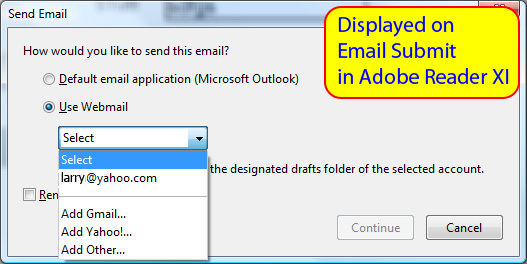
Figure 1 — Helpful email guidance for users in Reader XI
In many, if not most, cases users will fill and submit forms with the free Reader. In older versions of Reader, this task was an issue because of Reader restrictions. Essentially, a form was required to be Enabled with Reader Fill and Save Rights in order to submit by email, but not anymore. The form fill and save restriction was removed from Reader XI. This is very good news for all of us since it removes an impediment and a point of confusion for regular email form submits. It does however, remain an issue with older versions. One simple solution is to encourage users to download the latest version of Adobe Reader by placing this code in a Document Level Script:
if(app.viewerVersion < 11 )
   app.alert("Please download the latest version of Reader",1);
LiveCycle (XFA) forms were introduced in Acrobat 7. Unlike regular AcroForms, LiveCycle PDF forms are not created with Acrobat. LiveCycle PDF forms are created with the LiveCycle PDF form Designer, which was included with Acrobat Professional until version XI. Users were encouraged to create LiveCycle PDF forms over AcroForms during the period from Acrobat 7 to Acrobat X. Since LiveCycle Designer is not included in Acrobat XI, most users will be creating AcroForms. Only users who purchase the LiveCycle PDF form Designer separately will be able to make LiveCycle PDF forms. So, if you are not already using LiveCycle PDF forms, then please ignore the section on the "LiveCycle Variation." It does not have anything to do with the regular AcroForms created in Acrobat.
Email possibilities
Acrobat provides four different functions for sending email from a PDF (listed below). While all four functions are specifically AcroForm JavaScript functions, all of them also work in a LiveCycle PDF form, so they can be used for scripting email submission in both PDF forms technologies.
|
app.mailMsg() |
This function sends an email message with no attachments. |
|
doc.mailForm() |
This function sends the form data in FDF as a file attachment to the email. Unfortunately, it does not work in Adobe Reader XI. |
|
doc.mailDoc() |
This function sends the entire PDF file as an email attachment. |
|
doc.submitForm() |
This function can send form data in a variety of formats, including custom XML. |
Each of these functions has inputs that allow the “To”, “CC,” “BCC,” “Subject” and body parts of the email to be set. The “app.mailMsg()” function is the only one that does not send form data as an attachment, it’s just for sending an email. However, this doesn’t mean that it can’t send form data since a script can be written to place the form data into the body of the email. Some legacy mainframe systems use exactly this method for transferring data
All three of the functions “app.mailMsg(),” “doc.mailForm()” and “doc.mailDoc()” use similar arguments, so we’ll just look at one of these, the “doc.mailDoc()” function. The “doc.submitForm()” function is used differently from the other functions, so it will also be discussed.
For some unknown reason, the “doc.mailForm()” function does not operate in Reader XI. The exact same functionality is available in the “doc.submitForm()” function, which does work in Reader XI, so we have to assume this restriction is an error that will be rectified in later versions of Acrobat. Fortunately, the Acrobat JavaScript model provides several ways to do the same thing.
Using a value from a form field to CC the email
In this example, the script will acquire a value from a form field and use that value as the CC address on an email submission. To simplify the code, it is assumed the field value really is an email address, so the script won’t include any email address format validation.
The example actually acquires two email addresses from the form, the client email address and an optional beneficiary email address. So the submit function’s CC address is an email list. Any of the email address fields in a submit (cTo, cCC, or cBCC) can be a list of semicolon or comma separated addresses. The comma separator is the standard format used by SMTP (the standard email server), but a semicolon will also work with most email programs.
Using the “doc.mailDoc()” function:
Place the code below in the Mouse Up event of a form button. In order for this code to work, the form must have two text fields, one named "ClientEmail" and one named "BennyEmail.” You can use different field names on the form for the email, but make sure to change the fields’ names used in the code to match the field names on the form.
// This is the form return email. It's hardcoded
// so that the form is always returned to the same address.
// Change address on your form to match the code below
var cToAddr = "[email protected]"

// First, get the client CC email address
var cCCAddr = this.getField("ClientEmail").value;

// Now get the beneficiary email only if it is filled out
var cBenAddr = this.getField("BennyEmail").value;
if(cBenAddr != "")
cCCAddr += ";" + cBenAddr;

// Set the subject and body text for the email message
var cSubLine = "Form X-1 returned from client"
var cBody = "Thank you for submitting your form.\n" + "Save the filled form attachment for your own records"

// Send the entire PDF as a file attachment on an email
this.mailDoc({bUI: true, cTo: cToAddr, cCc: cCCAddr, cSubject: cSubLine, cMsg: cBody});
Notice that the line of code that sends the email (the last line) doesn’t have any hard-coded inputs, except for the first one. This first input, “bUI,” must always be set to true when this function is used from within a document script. All the other inputs, the email inputs, are set up as variables in the code above this line. These are the values you need to change to customize this code for your form. In this example, all values except for the “cCc” address are set to static values, but any one of them could be built dynamically from fields on the form. For example, if the form has fields for entering the client’s first and last name, then this line of code could be used to dynamically build the subject line.
var cSubLine = "Form X-1 returned from " + this.getField("ClientFirstName").value + " " + this.getField("ClientLastName").value;
Using the “doc.submitForm()” function
The “doc.submitForm()” function is a general-purpose data-submission tool. It can submit to server scripts or email, and in a large variety of formats. If an email address is used, then all the email information is placed in the email URL. There are no individual function inputs for the To, CC, Subject, and Body parts of the email. But the “doc.submitForm()” function does have quite a menagerie of inputs for controlling how the data is submitted. In the code below, it is set up to submit the data in XML format.
Place the code below in the Mouse Up event of a form button. In order for this code to work, the form must have two text fields, one named "ClientEmail" and one named "BennyEmail.”
// This is the form return email. Its hardcoded
// so that the form is always returned to the same address
// Change address on your form
var cToAddr = "[email protected]";

// First, get the client CC email address
var cCCAddr = this.getField("ClientEmail").value;

// Now get the beneficiary email only if it is filled out
var cBenAddr = this.getField("BennyEmail").value;
if(cBenAddr != "")
cCCAddr += "," + cBenAddr;

// Set the subject and body text for the email message
var cSubLine = "Form X-1 returned from client";
var cBody = "Thank you for submitting your form.\n" + "Save the mail attachment for your own records";

//** Send the form data as an XML attachment on an email
// Build the email URL
var cEmailURL = "mailto:[email protected]?cc=" + cCCAddr + "&subject=" + cSubLine + "&body=" + cBody;
this.submitForm({cURL: encodeURI(cEmailURL), cSubmitAs:"XML", cCharSet:"utf-8"});
The first part of this code is identical to the last example. After all, regardless of which function sends the email, all the standard parts of an email have to be provided. So these things will be the same in any email script. The difference is in how the inputs to the email function are built.
In this case, the email CC address, subject line, and body are all set up as URL query parameters. Notice the "encodeURI()" function is used on the URL. This is a Core JavaScript function that fixes up the URL so that it does not contain any characters that are incompatible with the URL format. The other inputs to the “doc.submitForm()” function control how the submit data is formatted. The “cSubmitAs” parameter controls the overall formatting. It has several possible values. In this code, the data is being sent in a generic XML format. The “cCharSet” parameter guarantees the character formatting of the XML is all standard 8-bit ANSI.
LiveCycle (XFA) variation
Both examples above can be used in a LiveCycle PDF form with only two minor changes. First, LiveCycle PDF form fields are organized differently than AcroForm form fields, and they have a different access mechanism. So, the code that builds the CC address has to be changed to use the LiveCycle method for acquiring a form field value.The second change is acquiring the AcroForm document object. Remember that the email functions are AcroForm JavaScript functions of the AcroForm document object. In an AcroForm script, the “this” keyword refers to the Document Object, so using the submitForm function is written as “this.submitForm().” But in a LiveCycle script, the “this” keyword refers to the object to which the script is attached. LiveCycle JavaScript does provide access to the AcroForm scripting model, and it provides access to the AcroForm Document Object through the “event.target” property. You ,can in fact, use just about any AcroForm document function or property in a LiveCycle PDF form by referencing it with “event.target” instead of “this,” as you would do in an AcroForm script. Here’s how the code for the first example would be modified for use in a LiveCycle PDF form, assuming the email address fields are in a subform named “ClientInfo.”
// This is the form return email. Its hardcoded
// so that the form is always returned to the same address
// Change address on your form
var cToAddr = "[email protected]";

// First, get the client CC email address
var cCCAddr = ClientInfo.ClientEmail.rawValue;

// Now get the beneficiary email only if it is filled out
var cBenAddr = ClientInfo.BennyEmail.rawValue;
if(cBenAddr != "")
cCCAddr += ";" + cBenAddr;

// Set the subject and body text for the email message
var cSubLine = "Form X-1 returned from client";
var cBody = "Thank you for submitting your form.\n" +
"Save the mail attachment for your own records";

// Send the entire PDF as a file attachment on an email
event.target.mailDoc({bUI: true, cTo: cToAddr, cCc: cCCAddr, cSubject: cSubLine, cMsg: cBody});
Conclusion
That’s all there is to it. Creating dynamic email submissions is simply a matter of collecting the email data from the form fields and then applying that information to the available email functions.
The full scripts for all the examples including some extras can be found in these example files: “DynamicEmail_AcroForm.pdf” and “DynamicEmail_XFAForm.pdf.” For more information about the functions used in this article see the Acrobat JavaScript reference.
References
Acrobat JavaScript Reference: https://www.adobe.com/devnet/acrobat.htmljavascript.html