
Dynamic stamp secrets using JavaScript and Acrobat XI
Learn how to code Adobe JavaScript to create a custom dynamic stamp.
By Thom Parker – May 30, 2013


So you’ve finally figured out how to create a custom dynamic stamp for Acrobat. But after all that hard work, what seemed like days of slogging through molasses, it still doesn’t do what it’s supposed to and your boss is getting impatient. There are three things yet to be done. The stamp needs to display the file-name of the document on which it is being placed, it needs to ask the user for some state information (i.e., approved, rejected, and so on), and it needs to write this information and a date into the document metadata. This is crazy! Documentation on dynamic stamps is already hard enough to come by. But there’s nothing anywhere about how to do these tasks (There is now, see the link to www.pdfscripting.com at the bottom of the page). Take heart! There is a solution.
Building a dynamic stamp
Before getting into the advanced details, let’s review some dynamic stamp basics (full dynamic stamp tutorial). A dynamic stamp is created by adding form fields to an existing PDF Stamp, in a Stamp File. It doesn’t count if the fields are added to the original PDF that is turned into a stamp. Those fields are flattened out when the new stamp is added to a Stamp File. The fields have to be added after the custom stamp is created.
A Stamp File is a regular PDF in which Acrobat has added some special information. The stamps are the pages in the Stamp File. Acrobat creates a new Stamp File when you create a new Stamp Category. Let me repeat that in a different way. All the stamps in a Stamp Category are placed in the same Stamp File, Figure 1.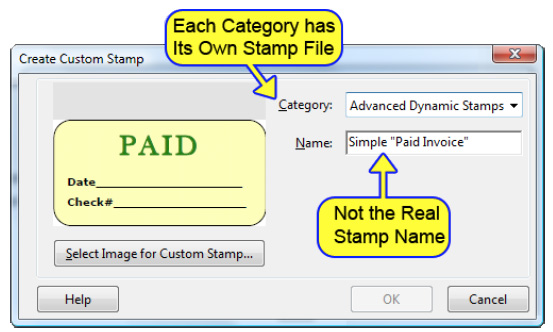
Figure 1 — Creating a Category creates a new Stamp File
The trick to creating a dynamic stamp is to first locate the Stamp File that contains your custom stamp. Fortunately, all the Stamp Files are contained within two folders, a "user" folder and an "app" folder. Acrobat keeps its own built-in stamps in the "app" folder. Your custom stamp will be located in the "user" folder. You can find the locations of these folders by executing the following lines of code in the JavaScript Console:
    app.getPath ("app", "stamps");
    app.getPath ("user", "stamps");
The results are shown below in Figure 2.
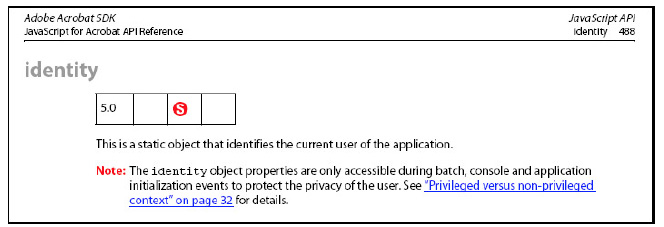
Figure 2 — Locating the Acrobat Stamp Folders
Unfortunately, when Acrobat creates the Stamp File, it gives it a cryptic looking name. You cannot know from the file name, which Stamp File contains your stamp. But remember, a Stamp File is a PDF, so you can open each one of the Stamp Files in the user stamp folder to find the stamp you want to make dynamic. Once you find the Stamp File, rename it so you'll know what it is the next time you need to make a dynamic stamp. Acrobat does not care about the name, you can make it anything you want.
To make the stamp dynamic you add form fields to it. At least one of the added form fields must have a calculation script. Acrobat runs the stamp calculation script every time it accesses the Stamp File. This means the script is run when Acrobat first opens the Stamp File, when the stamp is displayed on the Stamp Menu, and when any stamp in the Stamp File is placed on a PDF. None of the other document or field scripts are useful. You must use the Field Calculation Script, and only the Field Calculation Script.
This calculation script runs in the context of the Stamp File, i.e., the this keyword is the Doc Object of the Stamp File. To demonstrate, place the following line of code in the calculation script for a field on your dynamic stamp.
event.value = this.documentFileName;
When you place the stamp on a PDF, it will display the name of the Stamp File, not the name of the file on which the stamp is placed.
Limitations
There is only one serious limitation to a dynamic stamp script. Stamp Files do not execute JavaScript like a normal PDF file. For example, there are no document or page events. Variables and functions cannot be defined in a document script. The only scripts guaranteed to execute are the calculation scripts of the fields placed on the stamp. Everything necessary to execute this script must be present in the script.
Another, less important limitation is that the event.rc value is meaningless in a dynamic stamp calculation script. It doesn’t block the field from acquiring the assigned value as it would in a normal calculation script.
Privileges
Acrobat grants dynamic stamp scripts a small amount of privilege. They are able to access the identity object, which is normally off limits to scripts in a PDF. The identity object contains the same user information listed in the Identity panel in the Acrobat Preferences. However, dynamic stamp scripts are not fully privileged, so they cannot use other secure Acrobat properties and functions, i.e., anything in the Acrobat JavaScript Reference marked with a red (S) in the Rights Bar is off limited, except for the Identity object.
Figure 3 — Identity Object Entry from the Acrobat JavaScript Reference
Dynamic scripts can call functions defined in a Folder level script, so if you need some privileged code for your stamp, you can always place it in an external script file.
The secrets
Now, down to business. In the introduction, our intrepid PDF developer was directed to accomplish three seemingly impossible dynamic stamp features.
- Display the name of the file (onto which the stamp is being placed) onto the stamp.
- Ask the user to choose some document state text to display on the stamp.
(Approved, Rejected or In Process) - Write the document state info and a date into the document metadata.
Features 1 and 3 require access to the document being stamped. We can’t use the this keyword because the dynamic stamp script is in the context of the Stamp File and we can’t use the app.activeDocs property because a document has to be disclosed before it shows up on the list. There are some other possible coding solutions, but they are all awkward and pose problems with version compatibility.
This issue seems impossible, but fortunately Acrobat JavaScript provides us with a solution. For dynamic stamp scripts, the event.source property is an object containing several useful parameters, one of which is the Doc Object for the PDF being stamped, event.source.source. Use the following code to get the file name for the PDF on which the stamp is being placed:
event.value = event.source.source.documentFileName;
To write a value into the document’s metadata, use this code
var cDate = util.printd("mm/dd/yyyy", new Date());
event.source.source.info.StampInfo = "Rejected:" + cDate;
That takes care of two issues, 1 and 3. For feature 2 we can use app.response() to ask the user for a simple string. But there is a problem. We want this popup to appear only when the user places the stamp on the PDF. But as discussed previously, the calculate script is called in several different situations. We can't have the app.response() dialog popping up at odd times. So, how does the stamp script know when our particular stamp is being placed on the document
Again, event.source comes to the rescue. In this case, we use the event.source.forReal and event.source.stampName properties. The forReal property is true when any stamp in the Stamp File is being placed on the document and false at all other times. This property narrows things down, but we need one more property to uniquely identify the situation when our particular stamp is being placed. The stampName property identifies the stamp in current use. Both of these properties must be used together to qualify stamp code that performs any kind of blocking operation, such as displaying a popup dialog.
The Stamp Name
So what is the name of our stamp? If you look back at Figure 1, you might think that the name you entered into the "Create Custom Stamp" dialog is the stamp name. But this would be incorrect. The name you gave the stamp is just a label. Acrobat gives the stamp a unique internal name you don't see. This name is a string of very cryptic looking letters and numbers and it is always prefixed with a "#" symbol. This is the name you need for your stamp script. But how do you find it?
There are several ways to get the real name of your stamp, but here is the easiest.
- Place your stamp onto a PDF file. It doesn't matter which file, this is just a dummy placement so you can get some information. You can delete it later.
- Select the stamp with the cursor.
- Open the console window and run the following code (Figure 4)
this.selectedAnnots[0].AP
This code displays the internal name of the dynamic stamp in the JavaScript Console, as shown in Figure 4.
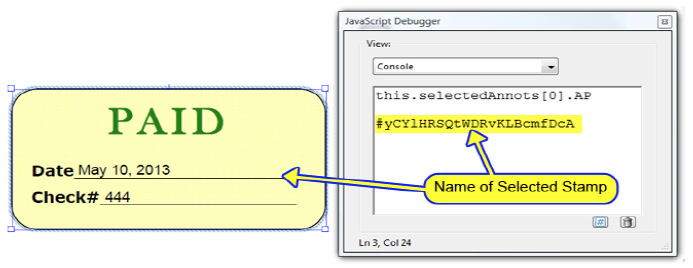
Figure 4 — Acquiring the real name of the stamp
You can now use this name to qualify any stamp code that needs to be protected from running at odd times by using the following "if" statement. Of course you'll need to change the stamp name to match your stamp.
if( event.source.forReal &&
   (event.source.stampName == "#yCY1HRSQtWDRvKLBcmfDcA""))
{
   event.value = app.response();
}
The sample file linked below also shows another way you can acquire the stamp name, by displaying it on the stamp using the stamp script.
Putting it all together
Let’s lay out the code our intrepid developer has created for his stamp. The stamp needs two fields: one on which to place PDF file name and one on which to place the user entered value.
Calculation (Dynamic) Script for Document Name Field
event.value = event.source.source.documentFileName;
Calculation (Dynamic) Script for User Data Field
(this is also the same script that will set metadata)
var cAsk = "Enter One of: Approved, Rejected, or In Process";
var cTitle = "Document State For Stamp";

if(event.source.forReal &&
   (event.source.stampName == "#UdzyXagRctZoS5p43TZ43C"))
{
   var cMsg = app.response(cAsk, cTitle);
   cMsg += " : " + util.printd("mm/dd/yyyy", new Date());
   event.value = cMsg;
   event.source.source.info.DocumentState = cMsg;

}
That’s all there is to it. Here’s what the stamp and popup response box look like.
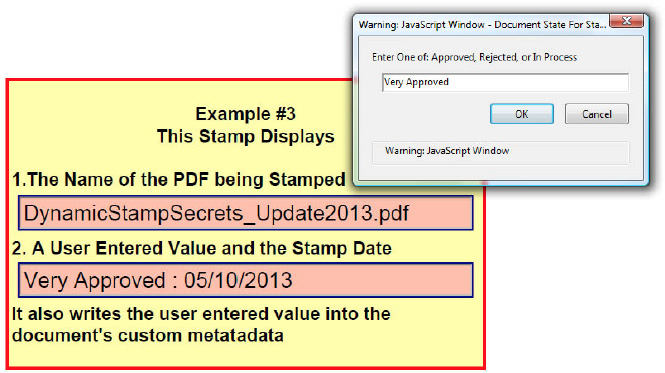
Figure 5 — User input response box and resulting stamp
Yet Another Stamp Secret
All code presented here is in the example Stamp File, StampSecrets_Sample.pdf, which will operate on Acrobat 7 or later. You heard that right. Stamps have not changed significantly in a very long time. The only reason the sample won't work in early versions is because of changes to the JavaScript model, not stamps. And to make things even better, Reader XI will apply dynamic stamps to any PDF document, without any special Reader Rights enabling. If you don't know about Reader Rights, then don't worry about it. The important bit is that you can use your dynamic Stamp Files with Adobe Reader XI to stamp any PDF file.
To use these stamps, place the sample file linked above into one of Acrobat’s stamp folders. Then close and restart Acrobat/Reader. “Secrets Examples” should now be visible in your Stamps menu.
Good Stamping!
For complete information on using and creating Acrobat and PDF stamps in document workflows (for both managers and users), and to learn all about stamp scripting from entry level to advanced automation, see The Stamp Book:
Products covered: |
Acrobat XI |
Related topics: |
JavaScript |
Top Searches: |
Edit PDF create PDF Action Wizard |
Try Acrobat DC
Get started >
Learn how to
edit PDF.
Ask the Community

Post, discuss and be part of the Acrobat community.
Join now >
46 comments
Comments for this tutorial are now closed.
Lori Kassuba
3, 2015-10-09 09, 2015Hi Michael Maguire,
In Acrobat XI and DC if you open the stamp and activate the Edit PDF command, you can change the font. Or, on the PC that has the correct stamp, just make sure the font is embedded.
Thanks,
Lori
Michael Maguire
11, 2015-10-08 08, 2015I am using Acrobat on 2 PC’s. I created a dynamic stamp on one PC, then copied it to the other, but it won’t display properly on the other PC because I don’t have the font “ARNUIS” on that PC. How do I change the font in the original stamp so that I can use it on the second PC?
Lori Kassuba
4, 2015-09-29 29, 2015Hi Charlotte,
Stamps are a bit different beast. You need to open the original stamp file and use the Acrobat editing tools to change the color. You’ll need admin permission to do this. The stamps are located in the following directory:
C:/Program Files/Adobe/Acrobat DC/Acrobat/plug-ins/Annotations/Stamps/ENU/Standard.pdf
Thanks,
Lori
Charlotte
9, 2015-09-21 21, 2015Unable to change color of stamp “Confidential” from blue to red. Stamp is on document blue, right click on stamp, go to properties, under appearance it shows as being red, click it and save it, it is still blue? How do I get it red?
Lori Kassuba
9, 2015-03-12 12, 2015Hi Jon,
Have you tried rotating the PDF in Acrobat? Be sure you’re not just using the Rotate View command under the View menu as this is temporary.
Thanks,
Lori
Jon
6, 2015-03-10 10, 2015When I insert a custom stamp created from a pdf it is rotated from the original file orientation. When I do the same with a custom stamp created from a jpeg it works fine. I have tried rotating the original pdf used to make the custom stamp. This did not work. I prefer to use the pdf custom stamp so that I may add text fields and so on. Please help.
Thom Parker
5, 2014-12-15 15, 2014Wittman,
In your dropbox sample I get the impression that your manually modifying the stamp file, and then restarting acrobat so it can be applied. This is a very common (if not very inefficient) work around. And yes, this article shows the proper (and efficient) solution to handling user input fields on a dynamic stamp. A more sophisticated solution is shown, but not explained, on this video.
http://www.pdfscripting.com/public/images/Video/PDFStampsGoneWild.cfm
Check boxes are particularly difficult because handling them requires a custom dialog. You can read some about custom dialogs here. https://acrobatusers.com/tutorials/popup_windows_part5. And you’ll find instructional videos here:
http://www.pdfscripting.com/public/Free_Videos.cfm#CustDialog
As it happens creating these types of sophisticated stamps is also something I do as a consultant (www.windjack.com).
On your other topic. I and many other people have submitted feature request to Adobe for exactly this issue. Why-o-why isn’t there a way to have a shared stamp file on the network. This would be amazingly useful. But it’s just not on their radar. Not part of the current feature set of marketing interest :( You’re best option is to have a Master that is kept by a single person, and then copied out to your users when changes are made.
Thom Parker
4, 2014-12-15 15, 2014Ronel Colkett,
130 stamps is a lot to have in a single category. You might find them easier to manage if they were placed into at least 4 different stamps files with different “Titles” (categories). One reason why Acrobat does not show stamps is duplicate names. Do your stamps have very unique names. Is it possible that some users already have stamps with these same names in another category? The stamp category names are just for organization, they do not contribute to the stamp’s unique identifier.
Wittman
5, 2014-12-04 04, 2014Thom,
I just wanted to clarify something if possible; Based on Muhammed’s comment from 2013-08-05 and your subsequent response regarding common misconceptions about dynamic stamps, I’m led to believe one cannot create a stamp that (after being placed on a document) allows one to input their own text or check/un-check a field (much like you can with a form). However, isn’t that what this tutorial is saying you can do? I think Muhammed and I are trying to accomplish the same things, but to help clarify, I’ve created a two page PDF that I hope graphically illustrates what I (we) are hoping to do. It shows an example of my current “work around” stamp method and what I want to create in the end. It can be found here: https://www.dropbox.com/s/671o2mpbpyl6meb/Stamp Example.pdf?dl=0
Secondly, in terms of sharing stamp files (the “smart” PDF that contains the blank first page and multiple stamps within it) I understand you can copy/install a specific stamp file in either the USER or APP folder, however these locations are local to each computer; Is there a way to save a stamp file to a network location and tell Acrobat to look into that folder instead of the aforementioned USER or APP folders? The reason for doing so is so there is a “master file” so to speak that updates all users stamp collections automatically. i.e., I shared my stamp file (let’s call it WORK STAMPS - it contains 20 different stamps) with Bob and he saves it to locally to his USER or APP folder. He now has the same stamps I do and he didn’t have to create them on his own which is great. However, I now add 3 new stamps to this collection on my computer, bringing my WORK STAMP total to 23. Bob on the other hand, still only has 20 in his because when I added the 3 stamps to my collection, it only modified the stamp file saved on my computer.
I look forward to hearing you comments!
Ronel Colkett
3, 2014-11-27 27, 2014We share a range of stamp files between 20 users, some of stamps are not visible for some of the users. Also, these users seem to be missing different stamps, I created about 5 stamp files which contains 80-130 stamps per file, for most users this works great. I recreated the stamp file to see it this would resolve the problem but it did not resolve the problem. It would appear that the stamps as seen in the stamps palette does not correspond with the list of stamps seen when selecting ‘show stamp name.’
Thom Parker
6, 2014-09-22 22, 2014Hello Stefano,
Yes you can!! All you need to do is send them your stamp file and have them install it in the proper folder location. It doesn’t matter if they are on a MAC or PC. It’s all the same to Acrobat. On a Mac its’ a bit of a trick finding the stamp location, but on a PC it’s easy. Just follow the instructions provided above, just underneath Figure 1
Stefano Rossi
1, 2014-09-21 21, 2014I have several dynamic stamps that I want to share within my mates. I’m using Acrobat 9 and some of my mates Acrobat X and XI. How to find my stamps in the system and can I share them in an easy way?
Thom Parker
4, 2014-09-03 03, 2014Yes there is. As shown in the article, each stamp has an Appearance Name (i.e. the AP property). This name uniquely identifies the type of stamp. Here’s a short script that builds an object with counts for each type of stamp on the current page
var aAnnots = this.getAnnots(this.pageNum)
var oStampCount = {};
for(i=0;i<aAnnots.length;i++)
{
if(aAnnots[i].type == "Stamp")
{
var cStampName = aAnnots[i].AP;
if(!oStampCount[cStampName])
oStampCount[cStampName] = 1;
else
oStampCount[cStampName]++;
}
}
Ross
4, 2014-09-02 02, 2014I am using Adobe Acrobat Pro. Is it possible to create a formula that would tally how many specific stamps are used? i.e. you would end up with: “3” of stamp 1, “2” stamp 2, “5” of stamp 3, etc.
Lori Kassuba
12, 2014-08-01 01, 2014Hi Harald Lindinger,
Sorry to hear you’re having difficulties with this version. You can post your issue directly to Adobe at this URL?
https://www.adobe.com/cfusion/mmform/index.cfm?name=wishform
Thanks,
Lori
Harald Lindinger
9, 2014-07-31 31, 2014In German Version 11.07
Dynamic Stamps (Original Adobe) are not working!!
11.0 worked well, shame on you Adobe!
Lori Kassuba
4, 2014-07-03 03, 2014Hi jaime,
Try right-clicking on the stamp tool and checking “Keep Tool Selected”.
Thanks,
Lori
Lori Kassuba
4, 2014-07-03 03, 2014Hi Sheri,
Make sure everyone is using the latest point update for Acrobat (11.0.7 at this point). There was an issue in earlier versions of Acrobat 11, where comments were not appearing when the author’s identity includes an ampersand or double-quotes.
Thanks,
Lori
jaime
10, 2014-07-02 02, 2014We use the check mark stamp multiple times on a document. Is there a way to keep that check mark stamp active so that you are not having to go back and keep selecting it after you stamp each time? I pinned the check mark to my favorites but after you stamp each time, you have to select the check mark over and over.
Sheri
9, 2014-07-02 02, 2014We use dynamic stamps and for some reason we have a few users who, when they add a stamp and then publish the pdf, others do not see the stamp, and if the user goes back into the PDF s/he does not see the stamp either. Is this a configuration setting issue?
Lori Kassuba
4, 2014-06-24 24, 2014Hi David B,
Acrobat uses native sizing parameters such a resolution. Try reducing the resolution prior to importing into Acrobat.
Thanks,
Lori
Lori Kassuba
2, 2014-06-19 19, 2014Hi Jacqueline,
You would need to create a custom dialog, which is very complex to create. You can find out more information about them here:
https://acrobatusers.com/tutorials/popup_windows_part5
Thanks,
Lori
David B
10, 2014-06-18 18, 2014I am just trying to create a custom stamp but it comes out very large , how do I make a jpeg stamp that has a smaller size ?
Jacqueline
3, 2014-06-17 17, 2014This was a fantastic tutorial and I have absolutely no scripting or programming experience!
Due to my lack of knowledge, I have a question. How do you get a drop down field to perform similarly? I’ve looked all over the web and can’t seem to find an example script simple enough for my inexperienced mind to understand so I can manipulate it to have the text I want. Any suggestion would be much appreciated.
Thanks much!
Thom Parker
4, 2014-06-04 04, 2014Tim - Try using the instructions directly under figure 1 above, for finding the stamp folders
Lori Kassuba
6, 2014-06-03 03, 2014Hi Tim Fischer,
Have you tried:
/Users/[USERNAME]/Library/Application Support/Adobe/Acrobat/11.0/Stamps
The Users folder may be hidden in your OS version.
Thanks,
Lori
Tim Fischer
8, 2014-06-02 02, 2014I am using Acrobat XI Pro and OS X 10.9.3. Just can’t seem to locate the Stamp Folder on my computer. Any suggestions?
Thom Parker
7, 2014-05-06 06, 2014Swapna, there is no alternative to getField() for acquiring a field object from a script at the document level. Unless of course the PDF is really an XFA form. Then you’d use the XFA JavaScript model.
Swapna
5, 2014-04-30 30, 2014I want to know if there is any alternative to this.getfield(“Fieldname”); in document level script
Tom
7, 2014-04-24 24, 2014Lori,
Thank you for the tip. It is so easy I’m embarrassed.
Lori Kassuba
5, 2014-04-21 21, 2014Hi Jeremy,
Thom posted this information about incremental numbering in a stamp in an earlier comment - here it is for your reference:
“Incrementing a stamp value is not as simple as you might initially think because it requires the ability to store the value being incremented. Because of the way dynamic stamps work, you cannot reliably store this data on the stamp itself.
I have a few incrementting stamp samples, as well as instructions on how to create one here:
http://www.pdfscripting.com/public/department53.cfm
You’ll see that there is also a book on stamps advertised on this web page. It includes detailed instructions on how to create a self incrementing stamp.
I also believe that Rick Borstein has an incrementing exhibit stamp here, which you could use as an example:
http://blogs.adobe.com/acrolaw/?s=exhibit+stamp&submit;=”
Thanks,
Lori
Jeremy
10, 2014-04-16 16, 2014I’m trying to create a stamp that will increment numbers across multiple files. I know you can write the custom metadata to the stamped document using the event.source.source code. I tried to write the metadata to the stamp file itself using this.info, but it will only do so when I have the stamp file open and save it.
Is there a way to save metadata directly to the stamp file, and then call it back when you open a new file to use in the new stamp? Thanks.
Thom Parker
5, 2013-11-11 11, 2013Nothing has changed with Acrobat JavaScript for Dynamic stamps in many years. It is likely that something has changed on your system. For example, if you used the “manage stamps” option on the file containing your stamp, then Acrobat may have flattened out the dynamic stamp fields. Essentially converting it to a static stamp.
To find out for sure, open the stamp file in Acrobat and check to make sure the dynamic stamp field and the script are still there.
cees van kollenburg
3, 2013-11-08 08, 2013I try to limit my stamp to “dd mmm yyyy” in the ‘Calculate’ field. Until a few days this worked perfectly. Today I get a datestamp as FRI NOV 08 2013 16:14:10 GMT+0100(CET).
It doesn’t react on changes in the ‘Calculate’ field.
Is something changed in Javascript? Or how can I get back my limited day stamp?
Thom Parker
5, 2013-10-23 23, 2013Amanda, There are several possible reasons for why the stamp script is not performing correctly. So the first thing you need to do is to verify that the script is in fact running. And second, you need to verify that you have the correct stamp name. To do both of these, place this code at the top of your script.
console.println(“Stamp: ” + event.source.stampName);
Restart Acrobat, open a PDF, open the console window, and then place your stamp. If you do not see a message in the console window you know the script is not running at all. If you do see a message, it will display the correct stamp name.
Amanda B
4, 2013-10-23 23, 2013I am trying to create a stamp with multiple interacive fields. One of our departments needs to stamp a PDF indicating borrower information (name, loan # & Loan Rep). I am trying to copy your example above (with modification) and it is not giving me the pop up as in your example. Any ideas?
var cAsk = “Enter Borrower Name”;
var cTitle = “Document State For Stamp”;
if(event.source.forReal &&
(event.source.stampName == “#26XJoZshKavEXIp3ZOELrA”))
{
var cMsg = app.response(cAsk, cTitle);
cMsg += ” : ” + util.printd(“mm/dd/yyyy”, new Date());
event.value = cMsg;
event.source.source.info.DocumentState = cMsg;
}
Thom Parker
5, 2013-08-20 20, 2013Muhammad,
Thank you very much for your comment. You have hit on several common points of misunderstanding with dynamic stamps. First, all PDF stamps are actually static. They are just pictures. When Acrobat places a stamp on a PDF if flattens out all the content. The dynamic bit is a special Acrobat feature that is only active in a small window. Just after the user clicks to place the stamp, and before that stamp is actually placed, Acrobat runs scripts on the stamp that fill out the form fields on the stamp. That small window is the only time those fields can be used.
So you see, the user cannot interact with the fields on the stamp. Only the stamp scripts can change those fields. So it makes no sense to put a signature field on the stamp. And if you want to use radio buttons or check boxes, you need some way for the stamp script to change them. This Article shows how you can use a popup “Response” box to set a custom, user entered value into a stamp. You can use an extension of this same technique to set a value in a check box or radio button. You’ll find a simple example of this in the appendix of the Stamp Book linked above.
Muhammad Ataya
2, 2013-08-05 05, 2013Lori,
Thank you for that, fortunately, that is exactly where I am saving it (the first file path you mentioned). It is not working. Here is what I did in a nutshell:
1. Added the stamp in as a dynamic custom stamp in Adobe.
2. Exited Adobe, navigated to the file path you mentioned.
3. Renamed the file to a recognizable file name
4. Opened the file, added 5 check boxes (hit save)
5. Added a signature field (hit save)
6. Added a Text box for date (hit save)
7. Added another text box with the script you mentioned (I right-clicked the text box, wehn to properties, hit the calculation tab, and then added that line of code) so that it pulled in the name of the file (hit save).
8. Close out of Adobe
9. Reopen a file and try to drop the stamp in. It comes in with the radio boxes un-checkable, the signature field isn’t recognized and neither is the text field, and the name of the file shows up in the “calculation” text box.
Lori Kassuba
4, 2013-08-02 02, 2013Hi David and Muhammad,
To keep the dynamic nature of the stamp, it’s critical that you place the stamp in one of two locations. The first requires admin access because you’re placing the stamp in the program directory:
C:/Users/[username]/AppData/Roaming/Adobe/Acrobat/11.0/Stamps
C:/Program Files/Adobe/Acrobat 11.0/Acrobat/plug-ins/Annotations/Stamps/ENU/Dynamic.pdf
Next, restart Acrobat.
Thanks,
Lori
Thom Parker
9, 2013-08-01 01, 2013Muhammad and David,
There are a number of issues that could be causing the stamp script to fail. An incorrect stamp name is one of those. There might also be an error in the stamp script, so please check the console window.
However, this is not the proper forum for a protracted discussion. Please post you questions on the regular forum..
David Linford
1, 2013-08-01 01, 2013I have the same “read only” problem that Muhammad Ataya is having. But when I save it elsewhere and then copy it back into the Stamps folder the stampname value changes. And none of my scripts run, I think because the stamp name is not correct.
Muhammad Ataya
3, 2013-07-31 31, 2013Thom and Lori,
Thanks for the advice! It worked to allow me to save. But the stamp still is not dynamic when I insert in into a pdf. The stamp is pretty simple, I added a few checkboxes, a signature field, and a text box for the date. I think where I am not doing something right is with the calculation field. Right now, I’ve got a text field with the calculation mentioned in this guide (to show the title of the file). But when I put the stamp into a pdf, those fields are just static they are not dynamic.
Thom Parker
3, 2013-07-30 30, 2013Muhammad, Acrobat will not allow you to directly modify stamp files in the application stamp folder. If you are trying to edit one of these files then you’ll need to save it to a temporary location, quite Acrobat , and then copy the modified stamp file back into the application stamp folder. There are also sometimes issues with the user stamp folder where you will need to follow the same procedure, but this is much more rare.
Muhammad Ataya
2, 2013-07-30 30, 2013Lori,
I got it to work with the save issue after getting your response! Thanks so much for that. Unfortunately, the stamp is still not dynamic when i put it in. Its simple, I have a few check boxes, a digital signature, and a text box for date. I used the “calculation” formula you mentioned in another text box as well. But it isn’t working. I suspect it has to do with that calculation formula. Maybe I’m not putting it in the right place? The formula itself is working, it brings in the name of that stamp file. But if it is supposed to act as a trigger for the form fields, it isn’t doing that.
Lori Kassuba
2, 2013-07-30 30, 2013Hi Muhammad Ataya,
This sounds like a system permission problem. You’ll need to confirm you have permission to update the stamp file especially if it’s located in the program directly.
Thanks,
Lori
Muhammad Ataya
11, 2013-07-25 25, 2013I follow all the steps, but once I open the file to add dynamic field, and I try to save it, it tells me that the document cannot be saved because it is a read only. Wants me to change the name or put it in a different folder.
Tom
4, 2013-07-08 08, 2013Thom,
You instructions on creating a stamp were a breeze. But no that I have created and placed my new Dynamic stamp, I can’t get it to print. Any suggestions? (PS - I also can’t print highlights.) Thx for your assistance.
Hi Tom,
In the Acrobat print dialog, on the right-hand side, make sure you have “Document and Markup” selected from the Comments & Forms dropdown.
Thanks,
Lori
Thom Parker
3, 2013-06-26 26, 2013Colin,
A stamp is simply an image. It does not contain any fields. Stamps are a convenient (and only) way to apply a custom image annotation to a PDF. You place form fields onto a dynamic stamp in order to dynamically change the image at the time it is placed. But these fields are flattened (to create the static image) when the stamp is placed.
There are other reasons why it does not make sense to put a digital signature field on a stamp, but this is the main one. You may want to consider using a Wet Signature instead.
Colin
7, 2013-06-25 25, 2013Is there a way to preserve a digital signature field that is placed into the stamp file? I have the need to obtain three signatures from three different parties with their printed initials and date inside the QA stamp. Managed to do this successfully with some javascript on a pdf file but when used as a stamp then these fields are wiped clean. Thanks.
Thom Parker
4, 2013-06-14 14, 2013Tamya, there are many things that can go wrong with creating a dynamic stamp. It’s a complex and not always obvious process, and this is not the correct place to cover the details. Please ask your question on the forum. And provides some specific details about your process.
Tamya Jones
5, 2013-06-11 11, 2013I created a Dynamic stamp with a script to update the date/time each time you use the stamp. But, this does not happen. The only way I can get the stamp to work is to edit it each time right before I use it. I’m new to Adobe and now nothing about JavaScript. Any suggestions to help?
Thom Parker
5, 2013-05-27 27, 2013Incrementing a stamp value is not as simple as you might initially think because it requires the ability to store the value being incremented. Because of the way dynamic stamps work, you cannot reliably store this data on the stamp itself.
I have a few incrementting stamp samples, as well as instructions on how to create one here:
http://www.pdfscripting.com/public/department53.cfm
You’ll see that there is also a book on stamps advertised on this web page. It includes detailed instructions on how to create a self incrementing stamp.
I also believe that Rick Borstein has an incrementing exhibit stamp here, which you could use as an example:
http://blogs.adobe.com/acrolaw/?s=exhibit+stamp&submit;=
Cam McC
5, 2013-05-27 27, 2013I’ve used this tutorial in the past and it worked great, but this time around I’m having trouble -
When I try to obtain my stamp name with:
event.value = event.source.stampName;
console.println(“Stamp Name: ” + event.source.stampName);
I only get:
TypeError: event.source is null
Any ideas?
Jason
8, 2013-05-26 26, 2013Thom,
Thanks for your very instructional videos and explanations on javascript and dynamic stamps. I’m at the point of progress where i have added the stamp, opened the file, added the text form field and copied: var i = 1; into the custom calculations edit area. The only action i need from this stamp is to increment numerically when i place the stamp and It doesn’t seem to be working. When I place the stamp there isn’t a number in the text field. please advise and thank you for your time.
Thom Parker
6, 2013-05-15 15, 2013Louis, the answer is simple. In JavaScript code, the opening and closing Parenthesis must be matched. The error you are seeing is being caused by a missing “Closing” parenthesis. Look through your code and make sure each opening “(” is matched with a “)” in the correct location.
louis
8, 2013-05-10 10, 2013I am getting this syntax message when editing the script of my dynamic stamp in attempt to prompt user added data: “SyntaxError: missing )- in compound statement 6: at line 7” can you help me with this?
Lori Kassuba
1, 2013-04-15 15, 2013Hi Javier,
You can create custom dynamic stamps in Acrobat 9, X and XI. Here is an updated tutorial on the subject:
https://acrobatusers.com/tutorials/creating-a-custom-dynamic-stamp-infographic
Thanks,
Lori
Thom Parker
6, 2013-04-13 13, 2013Javier, You can do this on any version of Acrobat. Post the specific issue on the forum
Javier
10, 2013-04-09 09, 2013I have tried doing this in Acrobat 9 and X. Are creating these dynamic stamps disabled in these versions?
Thom Parker
4, 2013-03-05 05, 2013Roy,
The stamp name is part of the Template name in the stamp file. It’s not something I can explain here. However, I would suggest you create your stamp from scratch, you can give it your own name. Or learn more about stamps by purchasing the Stamp Book:
http://www.pdfscripting.com/public/All-About-PDF-Stamps-in-Acrobat-and-Paperless-Workflows-The-Book.cfm
Or becoming a member at www.pdfscripting.com
Roy
9, 2013-03-01 01, 2013Thom,
I need your assistance, I was able to modify your example of the dynamic stamp secrets file, but I’not able to change the name of the stamp, the stamp reads “Example3”. How can I achieve this?
Thom Parker
3, 2012-10-01 01, 2012Susan, what you are asking about is how to manipulate strings in JavaScript. Here is an article on the topic, it includes and example of removing the extension from a file name:
https://acrobatusers.com/tutorials/splitting-and-rebuilding-strings
Susan
10, 2012-09-27 27, 2012Thank you for a good tutorial.
Is there a way to get the following string to return the file name without the file type (.pdf)?
event.value = event.source.source.documentFileName;
Thom Parker
7, 2012-07-16 16, 2012Julie,
I’ve created many stamps that are very similar to what you’ve described, so it can definitely be done. The details are not something I could give you in this form. You’d need a training session. Or, If you are motivated, you’ll find all the details in this book:
http://www.pdfscripting.com/public/183.cfm
There are also tutorials and samples here:
http://www.pdfscripting.com - Watch the “Stamps Gone Wild” Video
We also provide custom development. Please feel free to contact me at [email protected]
Julie
4, 2012-07-11 11, 2012Hello, I am trying to create a custom dynamic stamp which will stamp “PAID” followed by the date (which may or may not be the current date) and then the payment method (cheque, visa, mastercard, cash, debit, wire transfer). I managed to get the PAID part, but the rest is beyond me, seeing as I know nothing about JavaScript. I tried to at least get it to do the payment method part, based on the code you wrote for option 2, but it didn’t work. Any assistance would be much appreciated. :)
Thom Parker
4, 2012-07-09 09, 2012Vernon,
There are no examples here in the Comment area. However, date and time Dynamic stamps are this easiest to make. Adobe does not exactly provide a template, but they do provide several examples, i.e, all of the built-in stamps that display a date and time. There are other tutorials on this site on creating a dynamic stamp. This particular article is about creating advanced features.
If you want a better set of instructions for creating a basic date and time stamp then I would suggest purchasing this book.
http://www.pdfscripting.com/public/183.cfm
Vernon Alexander
3, 2012-07-03 03, 2012I want to create a date and time stamp. Is there a built in template to work from in the “Comment” area? Am I missing something.
Thom Parker
11, 2012-06-26 26, 2012Hello Mathew, I believe I already answered this question in the forums.
Mathew
4, 2012-06-25 25, 2012Is there any way to build a dynamic stamp which can open an attached file (i.e. having the same function as the ‘attach file as comment’ tool)?
Comments for this tutorial are now closed.