How to Save a PDF with Acrobat JavaScript
Learn how to save a file to disk using Acrobat 9, X or XI and Acrobat JavaScript.
By Thom Parker – February 18, 2010


This article presents scripts for not only saving a PDF file to disk, but also for saving the PDF to different formats, such as an image file, MS Word, text and even HTML. Being able to save a file to disk is a critical activity for Acrobat workflow automation, and fortunately, there are a couple ways to do this from an Acrobat script. In fact, this is a feature that has been around for a long time, so everything discussed here is valid for old versions of Acrobat as well as Acrobat XI.
Saving in Reader is a little different since this functionality was traditionally off limits, except for specially "Enabled" documents. As explained below, this restriction was mostly removed in version XI, making Reader a much more useful tool in Document Workflows.
So far, I've only talked about using the save feature in the context of automating workflows, but what if you want to put a save button on a form?
Placing a custom save button on a form
This is a common form feature requested in the forums. Let me start right off by saying that putting a script into a PDF form that saves the PDF can only be done under such restrictive circumstances that in most cases it is not practical. In the Acrobat/Reader environment, saving a PDF to disk is a protected operation. It’s a security issue.Users would not be very happy if random PDFs downloaded from the internet could silently save themselves to disk. The user has to know what’s going on. They have to either explicitly save the file using the "File > Save…" menu item, or implicitly allow the save through a trust mechanism.
Trust mechanisms are useful and appropriate in a small or closed environment, such as an office. They are not suitable for widely distributed files. In Acrobat, there are three main trust mechanisms; Actions (batch sequences), trusted functions and digital signatures. All three of these mechanisms provide a "Privileged Context" for code that requires trust. The first two are useful for workflow automation. The last one, digital signatures, is most useful for business documents, such as contracts that are passed back and forth between businesses or within an office. At least one of these trust mechanisms must be employed in order for a script to be able to silently save a PDF to disk.
Given the "trust" restriction, it is possible to place a custom "Save" button on a PDF, but it will only work for users that have the appropriate trust mechanism enabled on their own system.
Saving in Reader
There used to be a saying in the Acrobat/PDF community, "Reader is a reader, not a writer." The original versions of Reader did not have "Save" capabilities, the idea being that it was a free tool only used for reading (hence the name). Writing a PDF required purchasing Acrobat. Despite these sage-like words of wisdom, Adobe did provide a method for saving PDFs from Reader, called "Reader Rights Enabling (or extensions)." A Reader Right is a kind of special sauce that when applied to a PDF, allowed that PDF to be modified and saved in Reader. There are different types of Rights for different types of features, such as forms, markup, and signing. Both Form and Markup Rights became obsolete in Acrobat XI. Anyone can now fill out a form or add markup annotations to a PDF in Reader XI and then save the file. Other modifications, such as digitally signing a PDF, still require the addition of a Right to the PDF. Since anyone with Reader XI can now save filled forms and marked up PDFs, a script can also save a PDF in Reader XI without any special sauce added to that PDF.
So Why Save from a Script?
The primary reason for saving a PDF through scripting is to support workflow automation. A workflow is just the set of actions you perform on your documents in order to process them in your own special way. For example, an accounting office in a large company receives hundreds of invoices from external vendors every day. The invoices need to be logged into the accounting system, verified, paid, and archived. One important step in this process is to mark the invoice so that the current status is clearly shown. In an electronic process, PDF invoices are sent by email, logged into a database and saved as a disk file. Acrobat can play a significant role in this workflow and huge efficiency savings can be gained by fully or partially automating the process steps with JavaScript. So, instead of manually marking invoices, an Acrobat script is used to stamp the PDF file with a status marker and then automatically save it to a new name with the press of a button. Obviously, the ability to save a PDF from a script is an important part of being able to implement such a solution.
How it’s done
There are two ways to save a PDF from a script, the "Save" menu item and the Doc.SaveAs() JavaScript function. Keep in mind that performing a fully silent save requires one of the previously mentioned trust mechanisms. An easy way to try out the code presented in this article is to run it from the Console Window. The Console Window is a Privileged Context, so no other trust mechanism is required for testing scripts.
The simplest methodology is to use the "Save" menu item. Just type this code into the Console Window and run it.
app.execMenuItem("Save");
This code saves the currently displayed PDF file in exactly the same way as when a user selects the "File > Save…" menu item. It works great when the automation script is operating on the current document. However, an automation script could be dealing with several documents at the same time. To handle this situation, the Save menu item can be applied to a specific PDF with this code:
var oMyDoc = <... PDF being operated on ...>
app.execMenuItem("Save", oMyDoc);
Try this code from a script on a form button. It won't work and Acrobat will not report an error. The reason Acrobat does not report an error is because the menu item exists, even though it does not work in the context in which it is being used. This is a tricky situation to debug. Always check your save results by closing and reopening the file. Don't rely on Acrobat to report errors.
Saving to a different file name, folder, and format
The doc.saveAs() function is much more general-purpose than executing the Save menu item. For example, the code below saves the current PDF to a temporary folder using a temporary file name. Use this code where the PDF is an intermediate file in the process:
this.saveAs("/c/temp/temp.pdf");
The code above uses a hard-coded path for saving the file. Notice the format of the path. In order to deal with cross-platform issues, Acrobat uses its own file path specification called the Device Independent File Path Format. If a script does not use this path format, the doc.saveAs() function will not work.
This code saves the file to the same file name, but to a new 'hard coded' location:
this.saveAs("/c/MyDocs/" + this.documentFileName);
The following script uses string manipulation operations to separate the file name from the file path in order to save the file to a new name, but in the same location:
// Split Path into an array so it is easy to work with
var aMyPath = this.path.split("/);

// Remove old file name
aMyPath.pop();

// Add new file name
aMyPath.push("NewFileName.pdf");

// Put path back together and save
this.saveAs(aMyPath.join("/"));
When saving a file, it’s very important to include the entire path. The "doc.saveAs()" function does not automatically use the path to the current file as a base. Always specify the fully qualified path. The code above follows this recommendation by using the current file path.
Sometimes you want the save to automatically overwrite an existing file with the same name, which is the case in the first example where a temporary file is saved. Conversely, there are also times when you’ll want to make sure a file is not automatically overwritten. If there is a conflict, you’ll want to warn the user and give them an opportunity to cancel the operation. For this situation, use the "bPromptToOverwrite" input as shown in the code below:
this.saveAs({cPath:cMyPath, bPromptToOverwrite:true});
The format of this function call is a little different. Notice the use of the curly braces, "{}", and that the input parameter names are explicitly spelled out. This format allows us to specify only the input parameters needed for the operation.
Converting a PDF to a different file format
The "doc.saveAs()" function includes input parameters for converting the PDF to a different file format. These are the same formats listed in the SaveAs dialog displayed when the user selects the "File > Save As…" menu item (Figure 1).
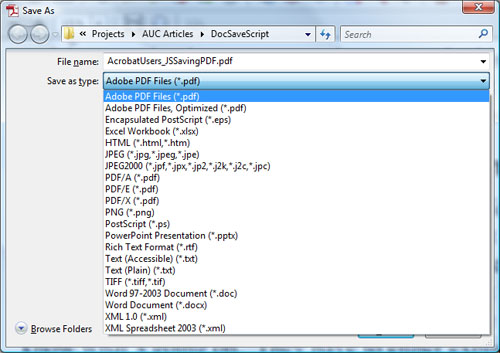
Figure 1 — The available Save Formats can be seen in the Save As Dialog
There are slight changes in which formats are available in different versions of Acrobat. The full listing of available formats for Acrobat XI can be found by running the following code in the Console Window (Figure 2):
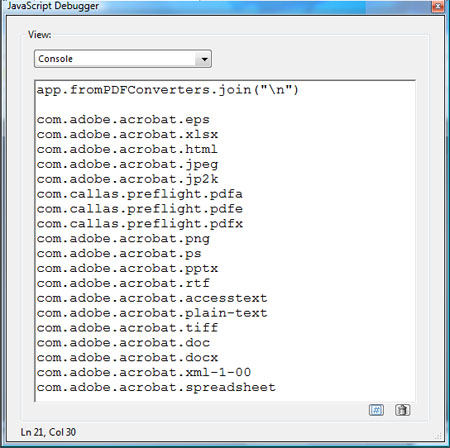
Figure 2 — Save Format Names (IDs) used in JavaScript
To convert all pages of the current PDF into JPEG files, use this code:
this.saveAs("/c/temp/test.jpg","com.adobe.acrobat.jpeg");
The file name and path must include the correct the file name extension for the conversion, which is specified in the second input parameter. This conversion ID (or format name) is taken from the app.fromPDFConverters list shown in Figure 2. In this example the conversion is to an image format. Image formats typically don't handle multiple pages, so Acrobat converts each page into an individual JPEG file. To do this, Acrobat appends _Page_# to the file name, so if the PDF had three pages, the file names would be:
test_Page_1.jpg
test_Page_2.jpg
test_Page_3.jpg
This naming convention is the same for all formats where each page is converted into an individual file.
The code below converts the PDF into a single MS Word file, since of course, Word files do handle multiple pages:
this.saveAs("/c/temp/test.doc","com.adobe.acrobat.doc");
Unfortunately, converting PDF files into formatted word-processing files does not always work very well because Acrobat doesn’t always know how to convert the PDF page formatting into the correct structure in the destination file, so be careful with this one.
The cleanest conversion is into PostScript:
this.saveAs("/c/temp/test.ps","com.adobe.acrobat.ps");
PostScript is a vector-based printing format closely related to PDF. I often use this conversion to completely flatten and remove all PDF features from a document. Acrobat can easily convert PostScript back into a clean PDF, so this is a perfect technique to use for converting a LiveCycle PDF form into a flat, archival PDF.
Creating a custom save function
Remember, in order to use the doc.saveAs function, it has to be run from a privileged context. In most situations, this will mean creating a folder-level trusted function. The following code defines such a function that performs only the save operation. This is a full working example, but it could also be used in a larger automation script.
var mySaveAs = app.trustedFunction(
   function(oDoc,cPath,cFlName)
   {
      app.beginPriv();
      // Ensure path has trailing "/"
      cPath = cPath.replace(/([^/])$/, "$1/");
      try{
         oDoc.saveAs(cPath + cFlName);
      }catch(e){
         app.alert("Error During Save");
      }
       app.endPriv();
   }
);
The inputs to this function provide the document object, path and file name. All three are important for creating a generic function for saving a file. For example, inside the folder-level function the keyword "this" may or may not be the current document. The meaning of "this" depends on the calling context, which is unknown. So it is very important to include the document object, "oDoc," even if the function is meant to be used on the current PDF.
If anything goes wrong with the save, such as a bad input parameter, then the "saveAs" function will throw an exception. For this reason, it is encapsulated in a try/catch block, which helps you, the developer, debug the code. The user should never see the alert box because the code calling this function should only pass in good parameters. But if there is a problem, you’ll know about it.
Once created, this folder-level function can be called from anywhere in the Acrobat JavaScript context, including from a script inside a PDF. For example, here’s a form button script for saving the current file back to itself:
// First make sure the function exists
if(typeof(mySaveAs) == "function"){
    mySaveAs(this,this.path);
}else{
    app.alert("Missing Save Fucntion" + Please contact forms administrator");
}
This folder-level function will also work in Adobe Reader XI, or in older versions of Adobe Reader if the PDF is Reader Enabled with Save Rights. See the Scripting for Adobe Reader article for more information, and be sure to read the other articles cited previously. They provide important supporting information and examples, especially the Device Independent File Path Format article.
Products covered: |
Acrobat XIAcrobat XAcrobat 9Acrobat Reader |
Related topics: |
JavaScript |
Top Searches: |
Edit PDF create PDF Action Wizard |
Try Acrobat DC
Get started >
Learn how to
edit PDF.
Ask the Community

Post, discuss and be part of the Acrobat community.
Join now >
20 comments
Comments for this tutorial are now closed.
Lee
3, 2015-10-27 27, 2015The save function wasn’t working for me when I had saved it as a folder level script. It wasn’t until after I wrapped the saveAs function in beginePrive and endPriv calls did it work
app.beginPriv();
oDoc.saveAs(cPath);
app.endPriv();
http://help.adobe.com/livedocs/acrobat_sdk/9.1/Acrobat9_1_HTMLHelp/wwhelp/wwhimpl/common/html/wwhelp.htm?context=Acrobat9_HTMLHelp&file=JS_API_AcroJS.88.524.html#1983668
David Gams
10, 2015-07-01 01, 2015I figured it out. One of my fields had a comma. Once it was removed, the button worked again.
David Gams
10, 2015-07-01 01, 2015I have gotten the SaveAs function to work but when I fill the form from and fdf, I get:
UnsupportedValueError: Value is unsupported. ===> Parameter cPath.
Doc.saveAs:4:Field Button1:Mouse Up
Why does that happen?
Thom Parker
5, 2014-09-02 02, 2014Hi John Kabler,
You’ll notice that the “mySaveAs” function described in the article includes a name input. So your task is to figure out how to generate that name from data entered on the form. The trick here is knowing how to access form field data with the doc.getField() function. I’d suggest reading some of the other article on Scripting in Acrobat. For example, this article, while it’s about a completely different topic, explains much of what you’ll need to accomplish your task.
https://acrobatusers.com/tutorials/dynamically-setting-submit-e-mail-address
John Kabler
7, 2014-08-31 31, 2014I need to have the file renamed itself using data entered in text fields by my customer. i.e. John J Smith sits at my computer and fills out the application. After he enters his last name, I want to run an action/javascript to rename (save as) where the file uses those three entries as the new file name. “John_J_Smith.pdf”
Right now, when they sign the app, it auto saves to the original blank doc file name, overwriting the blank doc.
Lori Kassuba
8, 2014-08-19 19, 2014Hi Anand Sharma,
It’s part of doc.SaveAs but it needs to be done from a folder level script.
Thanks,
Lori
Anand Sharma
8, 2014-08-19 19, 2014hii Lori
how to creat a file name….?
Thom Parker
8, 2014-07-31 31, 2014R80 - Unfortunately No, there is no parameter in the email functions for setting priority.
R80
12, 2014-07-29 29, 2014Is it possible to write a javascript to make the email be sent as a “High Importance” email? I’m using
I’m using Acrobat 9.3 and Outlook 2010, and this is my submission script:
{
//Submission Script
if (bContinue) {
this.mailDoc({
bUI: true,
cTo: cToAddr,
cCc: cCCAddr,
cSubject: cSubLine,
cMsg: cBody
})};
} else {app.alert(“At least one required field was empty on export. Please fill in the required fields (highlighted) before continuing.”);
T.readonly = false;
F.readonly = false;
}
Thom Parker
4, 2014-07-07 07, 2014santoshmenon, I think that what you really want to ask is if you can execute an Acrobat JavaScript function from an external program, specifically a “.Net” program.
And the answer is YES you can!! Acrobat as an Active X interface called the Interapplication Communication (IAC) interface. You can find info on the interface here: https://www.adobe.com/devnet/acrobat.html
However, since you’ll be using the IAC, there is no need for you to use JavaScript to save the file. The IAC has functions for saving. I do use JavaScript from the IAC quite frequently to automate tasks that cannot be done from the IAC.
Thom Parker
www.pdfscripting.com
santoshmenon
11, 2014-07-05 05, 2014can i execute these scripts to automate the process. actually iam working in dotnet and want that some how i can excute the script to save the currently opened file
Lori Kassuba
2, 2014-05-06 06, 2014Hi TiredofTrying,
Do you have the code that saves the file in a folder-level JavaScript file? This needs to be run from a privileged context. In most situations, this will mean creating a folder-level trusted function.
Thanks,
Lori
TiredofTrying
9, 2014-05-03 03, 2014I’ve tried to make the save work and from the console it does. When I call it from a button it fails everytime. What is the secret to making this work?
Lori Kassuba
2, 2014-02-27 27, 2014Hi Kevin,
%userprofile% is a windows system variable that you cannot access within Acrobat JavaScript. There may be another way but I would suggest posting your question at this URL and specifically choosing the JavaScript category - that way our JavaScript experts might be able help:
http://answers.acrobatusers.com/AskQuestion.aspx
Thanks,
Lori
Kevin
6, 2014-02-24 24, 2014Hi Lori,
Thanks for getting back to me. I have created a form in live cycle with a save button that, when clicked, automatically names the .pdf using information from fields within the form and saves the file to 2 different folders on the C: drive. this is done using both javascript on both the button and a folder level script located in the program files javascript folder for reader XI. the button script reads as follows.
xfa.resoleNode(“RA”);
myTrustedSpecialTaskFunc(this, “/c/Technical/Completed
Inspections/” +
Company.rawValue + “_” + InspectionType.rawValue + “_” +
DATEPREFORMED.rawValue + “_” + SONUM.rawValue + “.pdf”;
myTrustedSpecialTaskFunc(this, “/c/Technical/Completed
Inspections/” +
Company.rawValue + “_” + InspectionType.rawValue + “_” +
DATEPREFORMED.rawValue + “_” + SONUM.rawValue + “Customer Copy” +
“.pdf”;
and the folder level script reads as;
mySaveAs = app.trusted PropagatorFunction(function(doc,path)
{
app.beginPriv();
var mydoc = event.target;
myDoc.saveAs(path);
app.endPriv();
})
myTrustedSpecialTaskFunc = app.trustedFunction(function(doc,path)
{
// Privileged and/or non-privileged code above
{
app.beginPriv();
mySaveAs(doc,path);
app.endPriv();
// Privileged and/or non-privileged code below
});
This current setup up works great but I would like to be able to save to a folder named “Technical” located in the current users profile folder. so the end result file path would be something like this
“C:\Users\kmoore\Technical\Completed Inspections”
with kmoore being the current user logged in.
What changes would I need to make to the folder level script to allow this?
Thanks again for your help.
Kevin
Lori Kassuba
3, 2014-02-24 24, 2014Hi Jeff Himmron,
In order for this to work, the code that saves the file needs to be placed in a folder-level JavaScript file. Then, code in the form can generate the file name based on the field values and pass it to the folder-level code. However, you’ll need to install the folder-level code on all of the form user’s machines.
Thanks,
Lori
Jodi
2, 2014-02-24 24, 2014Thanks Lori! I was missunderstanding! So glad it still works that way :) !
Lori Kassuba
2, 2014-02-24 24, 2014Hi Jodi,
To save a form using JavaScript, your recipients need Reader XI or the PDF itself will need to be Reader-enabled for use in earlier version of Reader.
Thanks,
Lori
Lori Kassuba
2, 2014-02-24 24, 2014Hi Kevin,
You’ll need use this with a folder-level trusted function, which means this script will need to be installed on every machine that uses your form or document.
Thanks,
Lori
Jeff Himmron
8, 2014-02-22 22, 2014Is there a way for JavaScript to use content from a Field as the file name? So if the Name Field was filled in as John Smith could the file be named JohnSmith.pdf?
Kevin
4, 2014-02-21 21, 2014Hello,
Is it possible to save to the current users profile folder
i.e. /c/Users/%CurrentUser%/documents
Thanks for your time
Kevin
Jodi
3, 2014-02-18 18, 2014HI all!
Just to make sure I read this right. If I create a livecylce form that has javascript in it (to populate drop downs or such), if a user has adobe reader prior to XI, the javasscript will not save in the form when they saving it using readed. Is that correct?
Thanks!
Jodi
Lori Kassuba
9, 2013-12-26 26, 2013Hi neil simon,
The most cost-effective way to do this would be to post the reader-enabled form on your website and include a submit button on the form that will allow folks to e-mail it back to you.
Thanks,
Lori
neil simon
7, 2013-12-21 21, 2013Hello
I am new to adobe 11 acrobat pro and have created a form which i intend to have available on a website, enable clients to fill out the form fields and then save and email or send to me another way. What is the best way to do this and the cheapest? I am a start up business so capital limited. Your help would be very much appreciated. I have looked into reader extensions and enabling portals etc and cannot seem to find a definitive answer Thanks Neil
Thom Parker
5, 2013-11-13 13, 2013Rostam,
Look in the Acrobat JavaScript reference for the functions “doc.closeDoc()” and “app.openDoc()”.
Read this article:
https://acrobatusers.com/tutorials/splitting-and-rebuilding-strings
for the rest there are no easy answers. You need to learn about programming and JavaScript. When you can understand this article you’ll be ready to implement your solution.
Phil Peacock,
The problem with Reader Extensions is that they are specific to different versions of Acrobat. That said, you are right in that Acrobat XI Extensions should work in Acrobat 9 and X. Are you sure the script is in the correct location for these other versions? Are there any error messages displayed in the Console Window on these versions?
Phil Peacock
3, 2013-11-13 13, 2013I have an application requiring a fill able PDF form to be opened filled in and then saved using a ‘Submit’ button on the form.
I’ve ‘Reader Enabled with Save Rights’ the form using Adobe Acrobat and added a custom folder level Acrobat JavaScript ‘saveAs’ trusted function to the ‘Reader\Javascripts’ folder per How to Save a PDF with Acrobat JavaScript.
I am able to save the form when opened in Reader XI but not in Reader IX or X.
From the above Adobe reference I understand that the save should work in Reader IX thru XI.
Any explanation or clarification of this would be appreciated.
Thanks
Rostam
8, 2013-10-28 28, 2013Hi,
I am very new to Adobe Acrobat pro and Java Scripting. I need to be able to have a script button that allows the user click on the PDF, save the file to a network path and the file name needs to be the user name from the field “user name”. The network path is always the same so the file name itself is always variable. Once the file is saved I need a fresh version of the PDF file that has not been filled opened (a constant PDF name sitting on the same network drive). Any help you can provide would be much appreciate it.
Thanks,
Rostam
Lori Kassuba
6, 2013-09-06 06, 2013Hi Jason,
Can you post you question here and choose the JavaScript category:
http://answers.acrobatusers.com/AskQuestion.aspx
Thanks,
Lori
Jason
3, 2013-09-05 05, 2013I want to use a button to create a save as reduced size pdf and save to a specified location. Can this be done, and if so can someone please provide the entire javascript? I have no experience with javascript only vb.
Thom Parker
4, 2013-09-03 03, 2013Habib,
A new document (PDF) cannot be created in Adobe Reader (after all, it is a Reader, not a writer;), which is why an error is reported. Please refer to the Acrobat JavaScript Reference for more detail.
habib
12, 2013-08-29 29, 2013Hi thom and others,
i have following script in a plane notepad BUT EXTENSION IS .JS to make it a JS file.i have put this file in javascript foder.
but when i click the “new doc” menu item from adobe reader 9, created by using below javascript code, it gives me error
ERROR:
NotAllowedError: Security settings prevent access to this property or method.
App.newDoc:5:Menu myTrustedNewDoc:Exec
JAVASCRIPT CODE:
trustedNewDoc = app.trustedFunction( function (nWidth, nHeight)
{
// additional code may appear above
app.beginPriv(); // explicitly raise privilege
app.newDoc( nWidth, nHeight );
app.endPriv();
// additional code may appear below.
})
app.addMenuItem( {
cName: “myTrustedNewDoc”,
cUser: “New Doc”, cParent: “File”,
cExec: “trustedNewDoc(200,200)”, nPos: 0
} );
Can someone please help me how do avoid this error and get my work done with the menu.
Thanks
habib
Lori Kassuba
4, 2013-03-26 26, 2013Hi Zech,
Unfortunately this is not possible:
http://answers.acrobatusers.com/how-I-set-default-filename-Save-As-dialog-q72297.aspx
Thanks,
Lori
Zech Crook
5, 2013-03-25 25, 2013Hello All! Great Info Here. Is it possible to have SaveAs name automatically generated from a Field on the PDF? I would appreciate any help.
Thanks
Patty Friesen
8, 2012-12-10 10, 2012Hi Huseyin,
Can you post this question to Thom here in the JavaScript category:
http://answers.acrobatusers.com/AskQuestion.aspx
so either Thom or other JavaScript experts can help you interactively and other members of the community can benefit from the question and answer?
Thanks,
Patty
Huseyin
11, 2012-12-10 10, 2012Mr. Parker,
Thank you for the great info, tried your example and always recived a security error. Error: Security settings prevent access to this property or method.
What I am afeter is to write to a .txt file using acrobat reader and truestedfunctions, tried blogs to get an answer but you are my last resort.
Thom Parker
10, 2012-06-26 26, 2012the doc.mailDoc() function works just fine with the app.trustedFunction() function. The issue could be that you’ve spelled app.trustedFunction() with a lower case “F”. JavaScript is case Sensitive. The function also has to be setup correctly.
However, the mailDoc function sends an email with a PDF attachment, not an XFDF attachment. To do this you’ll need to use a form submit. See these two articles.
https://acrobatusers.com/tutorials/submitting-data
https://acrobatusers.com/tutorials/form-submit-e-mail-demystified
eddy sels
6, 2012-06-26 26, 2012app.trustedfunction does not work with mailDoc function. Someone has a working example? I want to sent a mail with an XFDF att.from a form.
I don’t get errors in the console but no mail is sent.
Comments for this tutorial are now closed.